You finally sit down with a cup of tea, the room is silent, and your Steam library throws the most anticipated action RPG of the decade at you like a gauntlet of legends. Black Myth: Wukong has aged like fine vinegar—sharp, complex, and still capable of knocking the wind out of your PC if you aren’t careful. Even in 2026, after countless patches, driver updates, and community wizardry, some travelers still report the game crashing during shader compilation or right in that breathtaking prologue—as if the engine itself trips over its own tail. I’ve been through this pilgrimage several times on different rigs, and I’m here to walk you through the fixes that still work, sprinkled with a few metaphors you won’t find in every generic guide.
Before we dive into the toolbox, understand that a modern GPU running Wukong can sometimes act like an opera singer asked to whisper a lullaby while sprinting uphill. The sheer fidelity of the Unreal Engine 5’s Nanite geometry and Lumen lighting makes the prologue’s clouds feel tangible, but it also makes your hardware sweat like a marathon runner in a fur coat. When crashes happen, it’s often the game’s way of saying, “I’m overwhelmed, let’s renegotiate terms.” Let’s teach it some manners.
🛠️ The Gentle Giant: Compatibility Mode and Admin Rights
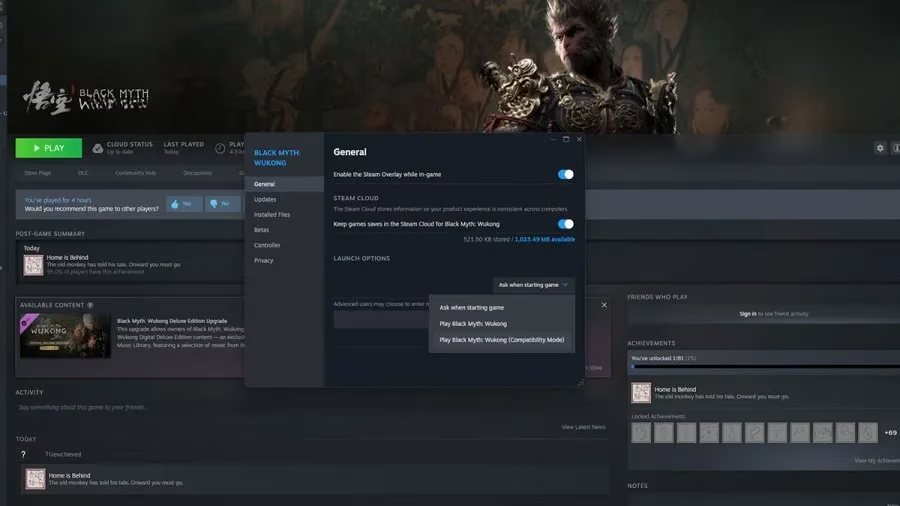
Right-click Black Myth: Wukong in your Steam Library, select Properties, and under Launch Options, pick Play Black Myth: Wukong (Compatibility Mode) from the dropdown. This tells the game to shed some of its most demanding visual feathers—like a peacock folding its tail to fit through a stable door. The image fuzzes slightly, but the stability you gain is often the difference between rage-quitting and reaching the first shrine.
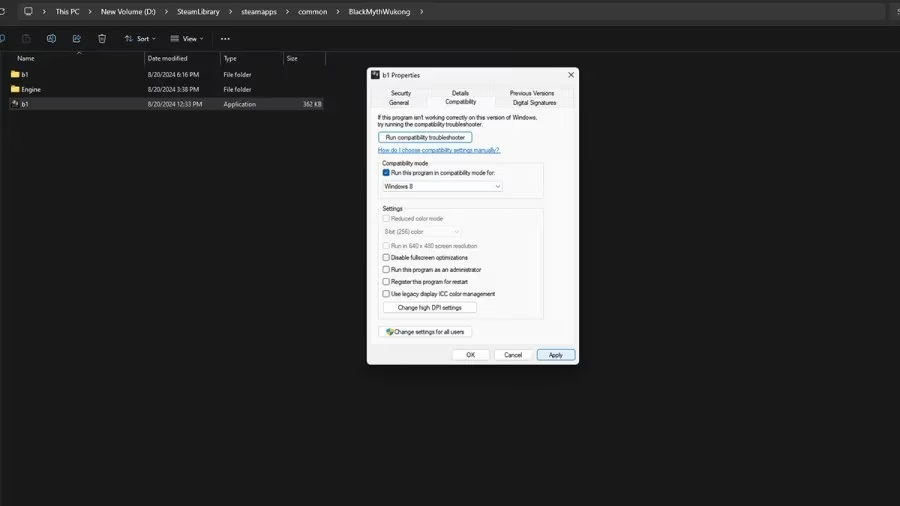
If that still sends you to the desktop, dig a little deeper. Navigate to the game’s installation folder (right-click in Library → Manage → Browse local files), locate b1.exe, right-click it, and enter Properties. Under the Compatibility tab, tick Run this program in compatibility mode for: and set it to Windows 8. While you’re there, check Run this program as an administrator. Apply and launch. This method has been a lifeboat for hundreds of players whose setups treat the game like an uninvited guest. It’s like giving the application a guest pass instead of a full identity check—less secure, but it gets through the door.
⚙️ Taming the Prologue Beast: Low Settings Until the Storm Passes
Here’s the scenario: shader compilation finishes like a calm before the storm, but the moment you step into the prologue’s swirling leaves, the screen freezes. Your character becomes a statue, and the music stutters like a broken music box. The fix is to limp through the intro on minimal settings before cranking everything back up once you gain control.
-
In the Display tab, set Framerate Cap to 30. This prevents the engine from sprinting ahead of itself.
-
Under Graphics, change Super Resolution Sampling to TSR (Temporal Super Resolution). It’s a lighter workload than FSR or DLSS for this specific bottleneck. Also, turn Frame Generation Off. Trust me, frame gen in a crashing scenario is like adding nitro to an already sputtering engine.
-
Finally, scroll to Graphics Preset and set it to Medium or even Low.
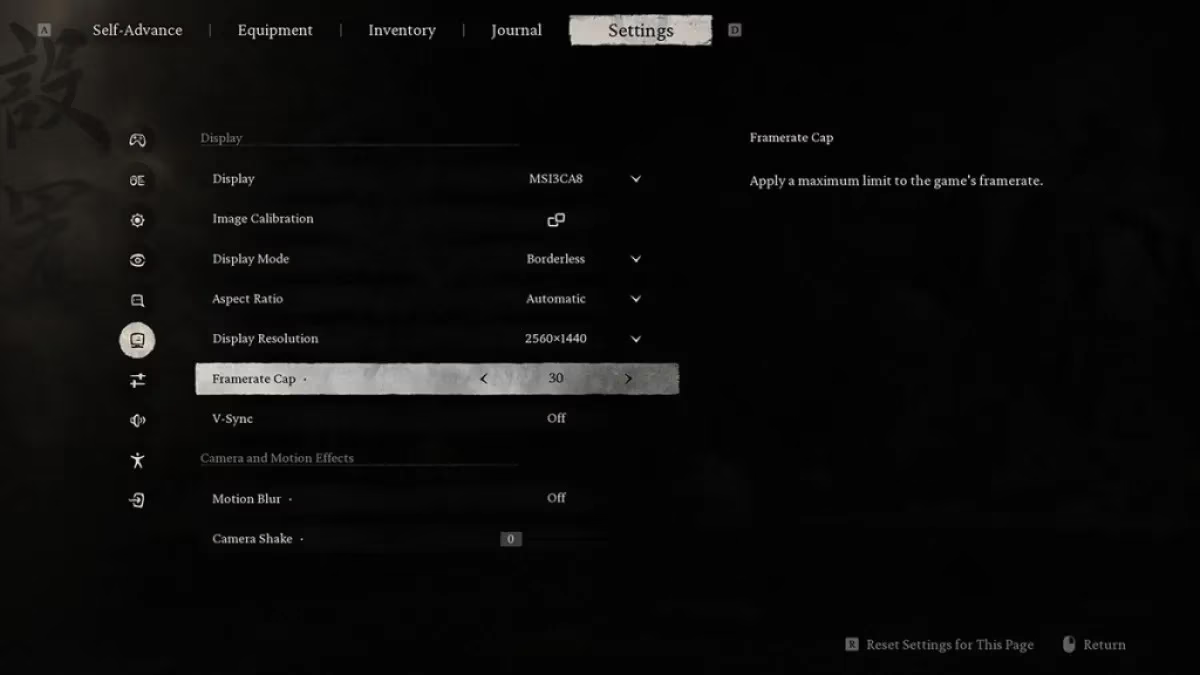
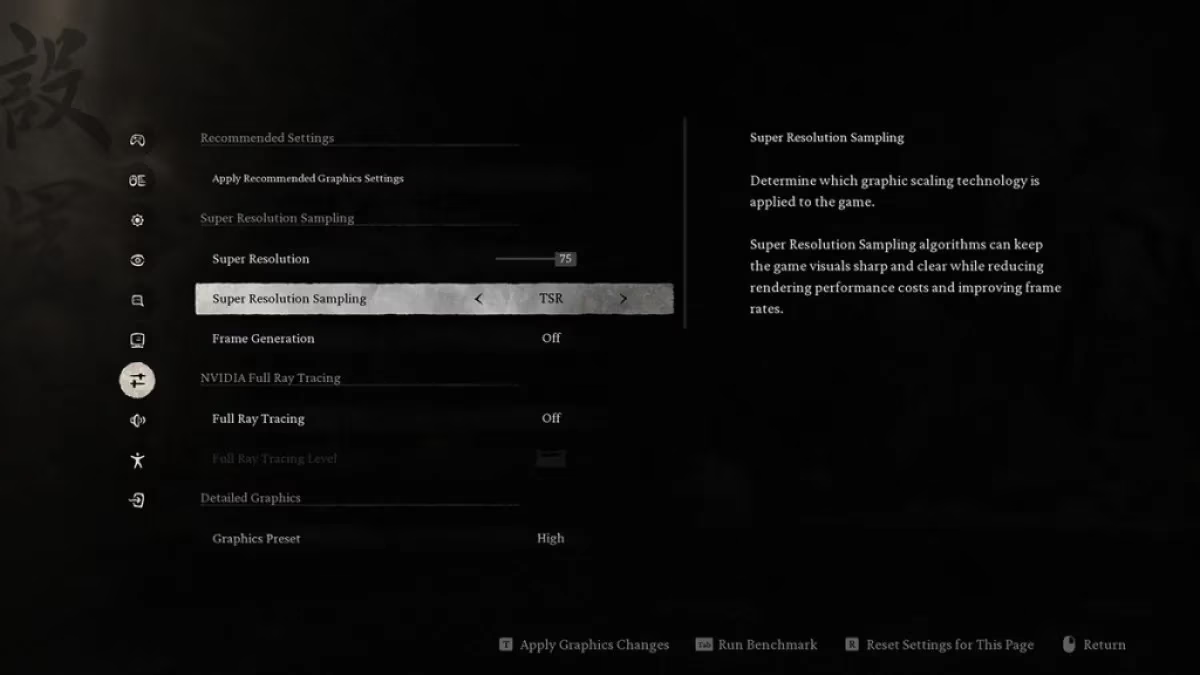
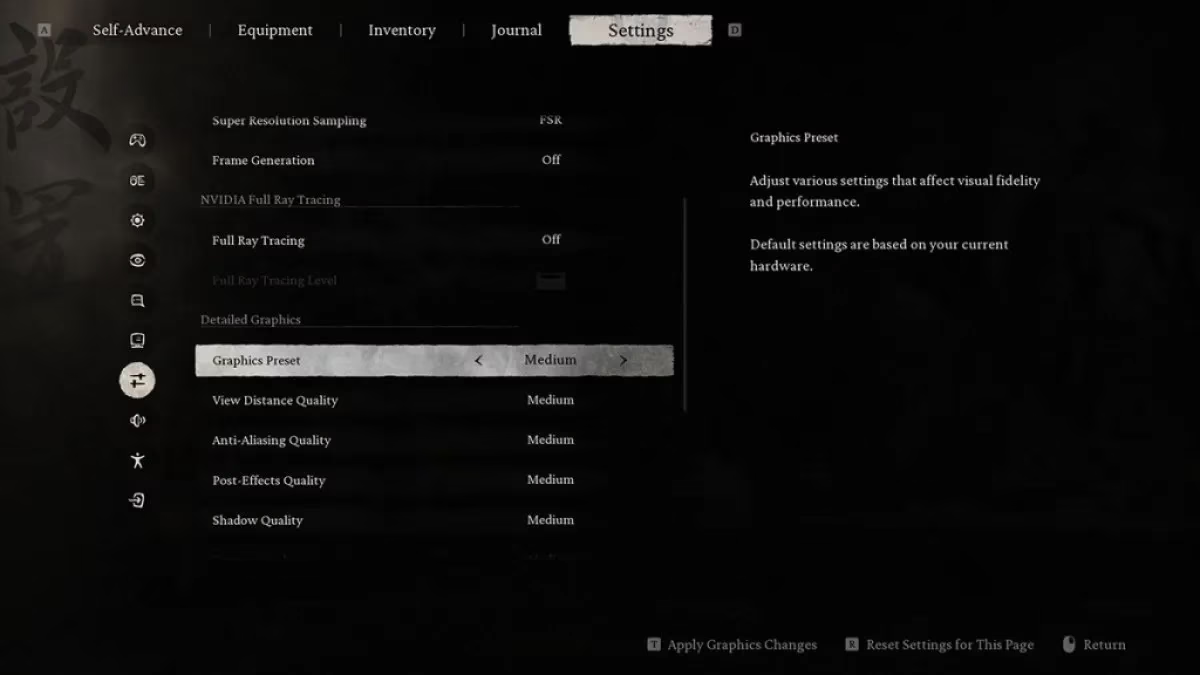
Start a new journey with these settings and play through the entire prologue. Once you regain control and can manually save, bump the preset back to High or your custom sweet spot. This method has become a rite of passage—like holding your breath through a dusty tunnel, then finally inhaling fresh air.
🔍 File Integrity: The Librarian’s Check
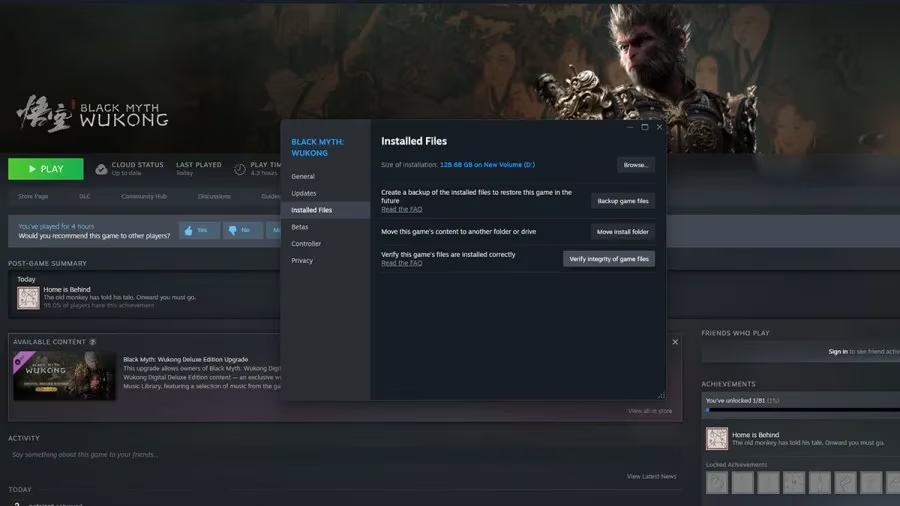
Sometimes a crash isn’t about horsepower; it’s about a misplaced comma in a 40GB epic. Corrupted or missing files are like missing pages in a spellbook—the ritual simply fails. In Steam, right-click the game → Properties → Installed Files → Verify integrity of game files. Let the client comb through every byte and replace anything that’s gone rogue. Even in 2026, with solid-state everything and checksums galore, a random cosmic ray or a hiccup during a patch download can bend a shader out of shape.
⬆️ Windows and GPU Drivers: The Foundation
I know you’ve heard this a thousand times, but it bears repeating because driver teams have been optimizing Wukong’s specific quirks for over two years now. Open Windows Update and grab everything available. For your graphics card, whether AMD’s Adrenalin or NVIDIA’s GeForce Experience, install the latest driver. AMD and NVIDIA often release “Game Ready” profiles that whisper sweet nothings to shader compilers. An outdated driver in 2026 is like trying to decode a new language with a dictionary from last century.
A brief historical note: at launch in 2024, certain AMD GPUs triggered crashes during the prologue. The developers acknowledged it, and while modern drivers have largely patched the wound, some users still find solace in rolling back to a slightly older driver version if the newest one acts up. Think of it as using a favorite, worn-in pair of gloves instead of stiff new ones.
❄️ The Nuclear Option for Intel 13th/14th Gen: Underclocking
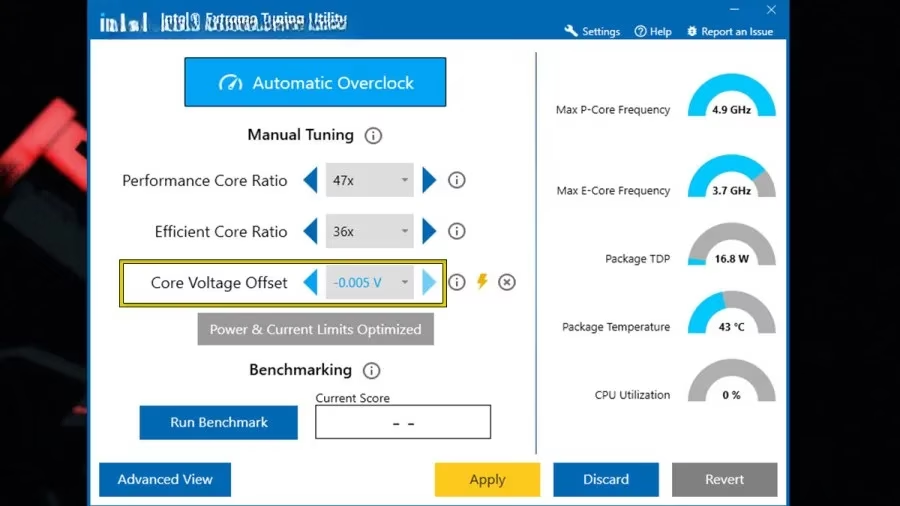
If you’re running a 13th- or 14th-generation Intel CPU and you see the dreaded “Out of video memory” error during shader compilation, your processor might be a little too enthusiastic—like a drummer pounding so hard he knocks over his own cymbals. The developers’ own suggestion is to underclock using Intel Extreme Tuning Utility (XTU). After installing XTU and restarting, launch it and look for Core Voltage Offset. Accept the overclocking disclaimer (don’t worry, you’re going the opposite direction), and start with a modest -0.020 V offset. This tiny undervolt reduces the CPU’s instantaneous power demands without harming stability. In fact, many CPUs run cooler and more consistently with a slight undervolt—it’s like asking a hyperactive student to take a deep breath before a test. If your system crashes, it simply restarts; no damage done. Test different offsets gradually to find your chip’s happy place.
🧭 The Journey Continues
These fixes have become a shared memory among Black Myth: Wukong’s wandering players. Even in 2026, when the game has received accolades and monumental expansions, the early technical hiccups still echo in certain hardware combinations. Compatibility mode, lowered prologue settings, file checks, driver hygiene, and a gentle CPU undervolt are the compass points that keep your journey from ending at a desktop crash. Next time you’re thrown out of the game, remember: the Monkey King himself was subdued by a mountain for 500 years, but he got back up. Your PC just needs a little nudge.